Valid Eval FAQs
TABLE OF CONTENTS
- Valid Eval FAQs
- I forgot my password, how do I change it?
- How do I add team members?
- How do I add/delete an email address from my account?
- How do I know my application was received?
- I faced an error in Valid Eval before the deadline, can I still submit my application?
- How do I reset my MFA?
- How to open and edit USDOT Standard Forms
I forgot my password, how do I change it?
We all do it, forgetting your password is common. To change your password, access the Password Reset link here
If the password reset email is not received within a few hours please reach out to our support team to assist with next steps. support.valideval.com
If the email address you are using does not exist in our system the reset email will not be sent. We can help point you in the right direction.
How do I add team members?
- We have made it easier than ever to add team members in the application process. Once you have entered the "Team members" tab of your application, you can add each team member by email. Further steps can be found here.
- The team member you add will receive a notification from Valid Eval and will be prompted to make an account if they do not yet have one.
- Assign roles to each team member, allowing them to edit or view.
How do I add/delete an email address from my account?
- First, log into Valid Eval here: https://usg.valideval.com/
- From the “Dashboard,” click on your first name at the top right of the browser window. In the menu that appears, select "My Account & Profiles." This will lead you to you “Global Account Profile” page. Once there, you may edit your profile, including adding additional email addresses to your profile.
- Why would I do this? You may easily log in with any of the email addresses you have, all of which will be linked to your one-and-only profile. This way, you won't have to remember which email address you used. All of them will use the same password since they all point back to the same Account Profile. Adding additional email addresses also helps you avoid future duplicate Valid Eval accounts.
For example, if your account is currently set up with only your work email address, a future invitation to be a Judge to your personal email address would require you to set up a new profile. Then you'd have two Valid Eval accounts. Of course, we can fix that, but we can see how it would be inconvenient for you as a user. To avoid that friction, we think it's a good idea to populate your profile with all of the email addresses you frequent.
IMPORTANT - if you are an Applicant - Do Not add other users email addresses under a single user profile. We have an additional area where you can invite Team Members to access applicant details. Please see further instructions here.
How do I know my application was received?
- If you have successfully submitted an application an automated message will be sent with the subject line of "
Sign-up confirmation" from "noreply@valideval.com".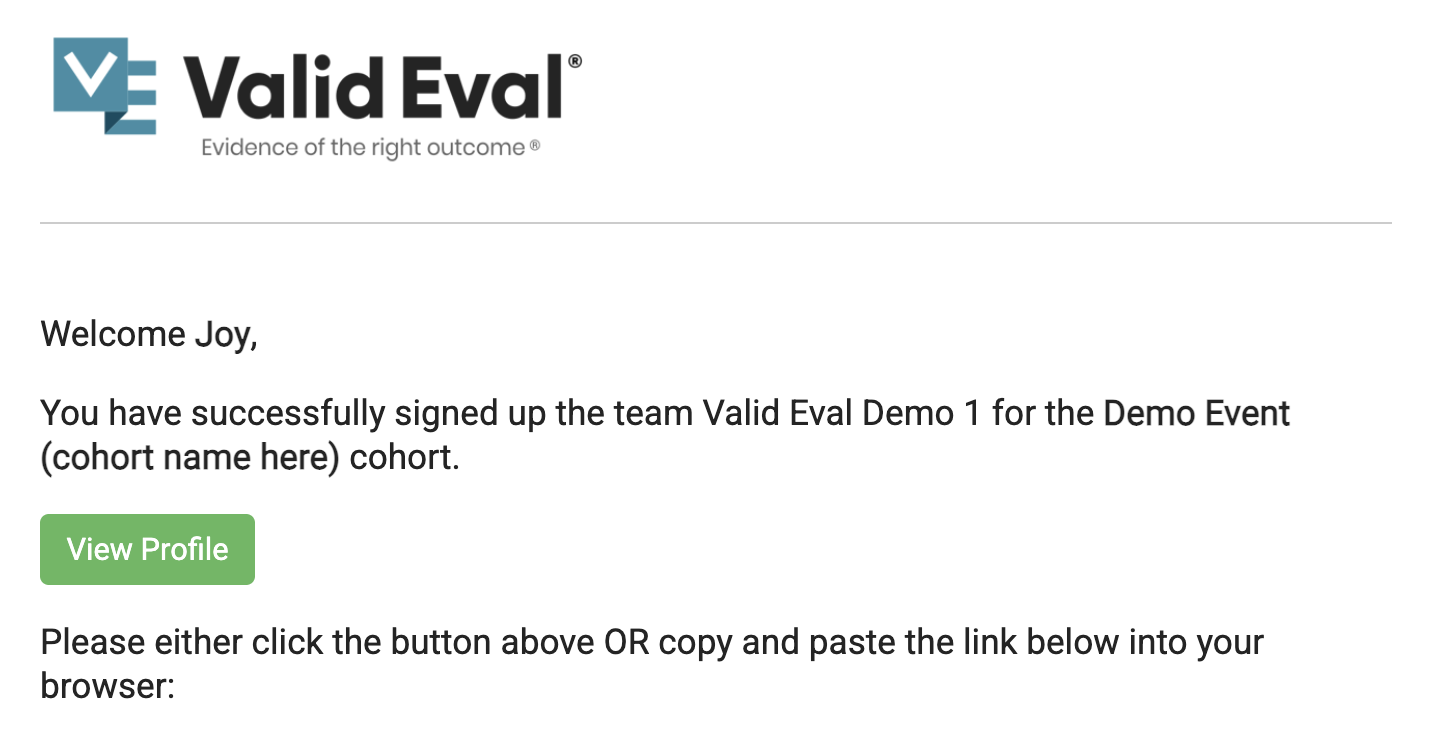
- As you approach the deadline, you may receive a notification (program dependent) if you have not yet submitted your application. Within that notification is a link to your draft application to continue to enter the required details. The system will indicate any required Details or Uploads that need attention. Applications are not seen by the program until you hit the submit button and get the above message.
- It is recommended that applications are submitted early, do not wait till the deadline to submit. Once the deadline has passed all draft applications will be closed.
- Reaching out to Valid Eval through support@valideval.com to confirm receipt of your application will result in a delayed response.
I faced an error in Valid Eval before the deadline, can I still submit my application?
- Encountering any issues prior to submitting an application please submit a ticket on support.valideval.com immediately. Please make sure to provide screen shots of error messages or details of your issue. Providing details in a timely response of your issue may impact our ability to assist if the signup deadline has already passed.
- The Valid Eval support team will review any issues raised and bring it to the attention of the program team. However, if the deadline has passed it will ultimately up to the program to make any considerations regarding the submission.
How do I reset my MFA?
- Purchasing a new device where your authenticator is stored will require your MFA to be reset by the Valid Eval team, so that you can re-authenticate on the new devise.
- Reach out to support@valideval.com to reset your MFA.
- To access the Multi-Factor Authentication (MFA) code, please open the authenticator app previously downloaded on your mobile device (e.g., Google Authenticator or Microsoft Authenticator). The code will be generated within the app, not via SMS.
How to open and edit USDOT Standard Forms
Valid Eval does not own or create the standard forms required by many USDOT programs. However, we've compiled some helpful tips for accessing and completing these forms.
Adobe Reader Requirements
Opening USDOT standard forms (such as SF-424) requires Adobe Reader 8 or higher installed on your computer.
- Adobe Reader is FREE and does not require a paid trial. Adobe may prompt you to select a Pro version, but this is not needed for standard forms.
- Download Adobe Reader for free: https://get.adobe.com/reader/
- Once installed or updated to the most recent version, you should be able to open the downloaded standard forms directly in Adobe.
Troubleshooting Common Issues
Standard forms often try to open in your web browser by default, which can cause display problems. Follow these steps to open the files successfully:
- You may receive a message suggesting Adobe 8 is not installed, even if it is. Disregard this message.
- Click the download option in your browser for the standard form you're trying to open.
- Save the file to a location on your computer (such as your Downloads folder or Desktop).
- Open the Adobe Reader application you recently installed or updated.
- In Adobe Reader, navigate to File > Open.
- Locate and select the standard form you previously downloaded.
- The file should now open with all fillable fields accessible.
Video Tutorial
For a step-by-step visual demonstration of this process, watch our silent video guide: [Insert Video Link]
Was this article helpful?
That’s Great!
Thank you for your feedback
Sorry! We couldn't be helpful
Thank you for your feedback
Feedback sent
We appreciate your effort and will try to fix the article